


In a world where ideas can vanish faster than your last slice of pizza, knowing how to save a voice memo on an iPhone is a game changer. Whether it’s that brilliant thought you had while half-asleep or a reminder to pick up groceries (because let’s face it, we all forget), voice memos are the unsung heroes of productivity.
But wait—how do you keep those golden nuggets of wisdom from disappearing into the digital abyss? Fear not! With just a few taps, you can secure your voice memos like a squirrel hoarding acorns for winter. Get ready to unlock the secrets of iPhone voice memos and ensure your best ideas stick around for the long haul.
Understanding Voice Memos on iPhone
Voice memos serve as a practical tool for recording thoughts and ideas on an iPhone. These recordings offer a convenient means of capturing moments when typing isn’t feasible.
What Are Voice Memos?
Voice memos are digital audio recordings created using the Voice Memos app on iPhones. Users can capture audio snippets, making it easy to document meetings, lectures, or personal reminders. The app is intuitive, allowing quick access to recording features. Memos can be shared via email or messaging apps, ensuring easy distribution of voice content.
Benefits of Using Voice Memos
Voice memos enhance productivity by enabling swift documentation of ideas without the need for typing. Recordings capture nuances in tone and emphasis, adding depth to communication. Accessibility is another advantage; users can store multiple memos for later reference. Utilizing this feature reduces the risk of forgetting important information. Additionally, voice memos foster creativity by allowing users to brainstorm freely without a strict format.
Step-by-Step Guide to Saving Voice Memos
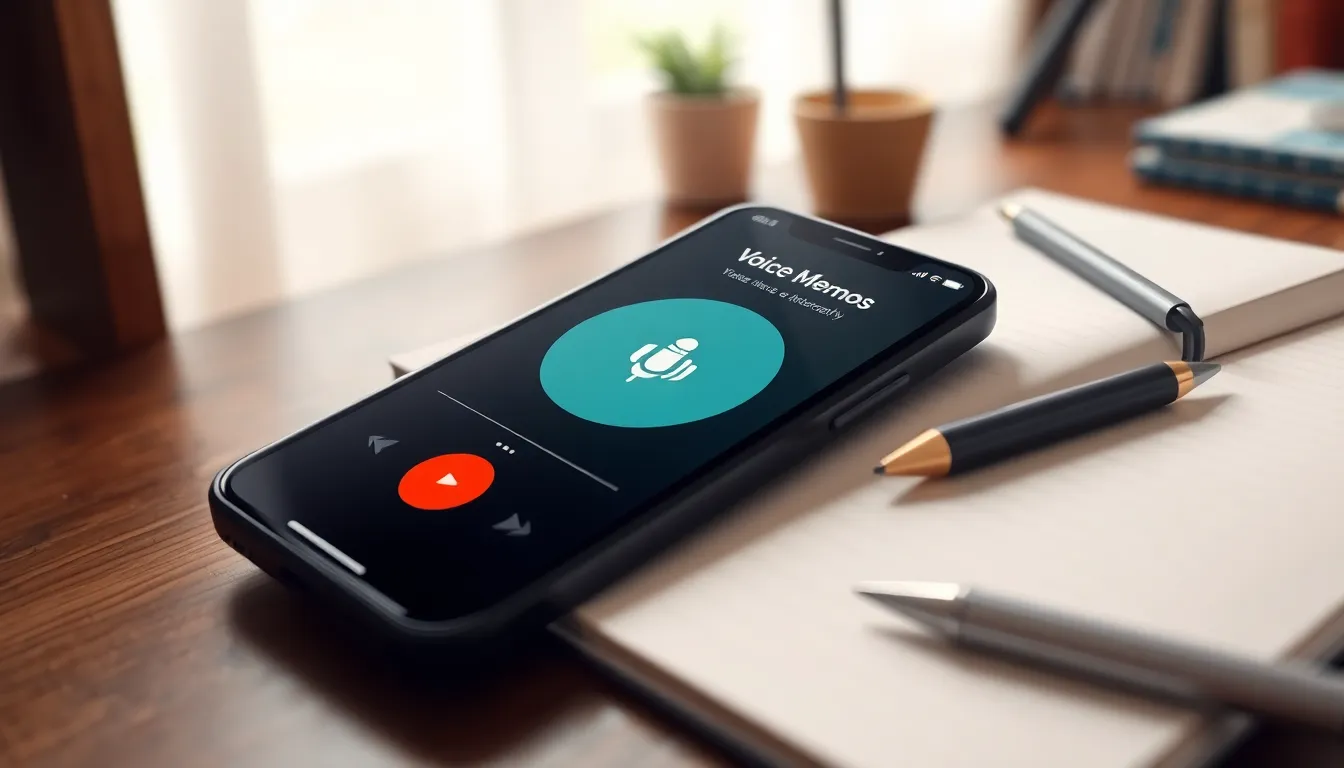
Saving voice memos on an iPhone is straightforward. Users can capture messages and reminders quickly, making them a valuable tool for productivity.
Recording a Voice Memo
To start recording a voice memo, open the Voice Memos app. Tap the red circular record button to initiate the recording. Speak clearly into the device’s microphone, ensuring background noise is minimal. A visual waveform appears, showing sound levels in real-time. Pause the recording with the pause button if needed, then resume by tapping the record button again. Once finished, tap the red button to stop the recording. This method captures thoughts accurately and effortlessly.
Saving a Voice Memo
After recording, tap “Done” to save the memo. A prompt appears to name the memo. Choosing a descriptive name helps with organization and retrieval. Users can select “Save” once the desired name is entered. The memo automatically saves in the app’s library, ready for playback anytime. Accessing the library lets users listen to, share, or delete memos later. Utilizing these steps ensures that no important recordings are ever lost.
Managing Your Voice Memos
Managing voice memos effectively enhances organization and accessibility. Users can streamline their recordings by applying specific strategies.
Organizing Voice Memos
Creating folders helps users structure voice memos. Categorizing memos by topic, project, or date simplifies retrieval. Naming conventions facilitate quick identification. For instance, labels like “Meeting Notes” or “Personal Reminders” provide clarity. The search function also allows swift access to particular recordings. Utilizing these methods ensures valuable recordings are easy to find.
Sharing and Deleting Voice Memos
Sharing voice memos is straightforward and versatile. Users can share recordings via email or messaging apps directly from the Voice Memos app. Select the desired memo, tap the share icon, and choose the sharing method. It’s also possible to delete unwanted memos to maintain organization. Pressing the edit option allows users to select and delete multiple recordings at once. This approach frees up storage and keeps the library focused on essential content.
Troubleshooting Common Issues
Saving voice memos on an iPhone should be seamless. However, common issues can arise, hindering the process.
Problems Saving Voice Memos
Users may encounter problems when trying to save voice memos. Insufficient storage space often leads to failed saves, prompting notifications to clear some space. Alternatively, software glitches might prevent the Voice Memos app from functioning properly. Restarting the iPhone typically resolves these issues. Users must ensure their iOS is updated to the latest version, as updates often include bug fixes. Checking background app refresh settings can also help; if the Voice Memos app doesn’t refresh in the background, it might not save recordings correctly.
Tips for Better Audio Quality
Improving audio quality enhances the clarity of voice memos. Speak directly into the iPhone’s microphone, positioning it about six to twelve inches away. Background noise should be minimized; recording in a quieter environment significantly improves clarity. Using headphones with a built-in microphone can also enhance sound quality. Avoiding windy conditions while recording is crucial, as wind can distort the audio. Testing recordings before important sessions ensures the audio is clear and free of interruptions.
Saving voice memos on an iPhone is a straightforward process that can significantly enhance productivity and creativity. By utilizing the Voice Memos app, users can effortlessly capture important thoughts and reminders without the hassle of typing. Organizing these recordings into folders and using clear naming conventions makes retrieval quick and easy.
With the ability to share and delete memos as needed, users can maintain a clutter-free library that focuses on what truly matters. Troubleshooting common issues ensures that the experience remains smooth, allowing for high-quality recordings every time. Embracing this simple yet powerful tool can lead to greater efficiency and creativity in daily life.


